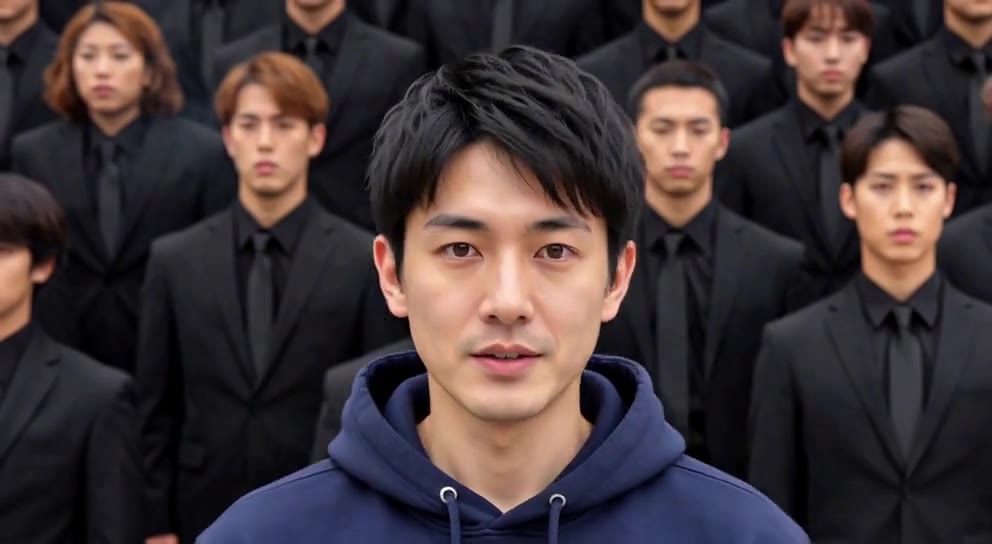
External visual reference from GoEnhance. Not a VideoAny-generated result.
A Storm II-style crowd-dance clip depends on a clear contrast: the lead stays calm and still while a coordinated crowd moves behind them. The camera gradually reveals the surrounding action. If the lead starts dancing too, the central joke becomes harder to see.
AI Storm II on VideoAny builds a 5-second, 720p video with Seedance 2.5 for 568 credits. One uploaded photo supplies the opening frame, with the surroundings transitioning into the crowd scene. The output follows the photo’s aspect ratio and is silent. The crowd choreography and setting come from a fixed preset.
1. Choose a pose that can hold the center
Use one clear photo of one person facing the camera. Show the face and upper body, preferably with a straight, relaxed posture. A neutral expression helps the calm-center idea, although the model may change facial details.
Look for space around the head and shoulders. A full-body photo can give the composition a stronger central silhouette, while a half-body photo can keep the face easier to recognize. Avoid an action pose, a sharply turned back or another person partly covering the subject.
Your upload determines the starting frame and output shape. A wider photo can leave room for a crowd on either side; a vertical photo gives more emphasis to the central person. Choose that composition before uploading rather than assuming the effect will offer a separate aspect-ratio control.
The result is designed to develop into wide steps at dusk, with cool light and light fog. Use the source photograph to establish a clear person, rather than trying to assemble a crowd in the input.
2. Upload and run one preset generation
Open the effect, sign in and choose Click to upload. Select a JPG or PNG up to 20 MB and inspect the preview. Confirm that the person you want is easy to identify.
Before continuing, read Seedance 2.5 · 720p, 5-second clip, the photo-based aspect ratio and the 568-credit cost. The effect has a fixed scene; there is no choreography script to enter or music track to select.
Wait for the upload to finish, then select Generate once when your balance covers the displayed amount. Processing may take several minutes. If the progress check fails or times out, look in generation history before submitting another task.
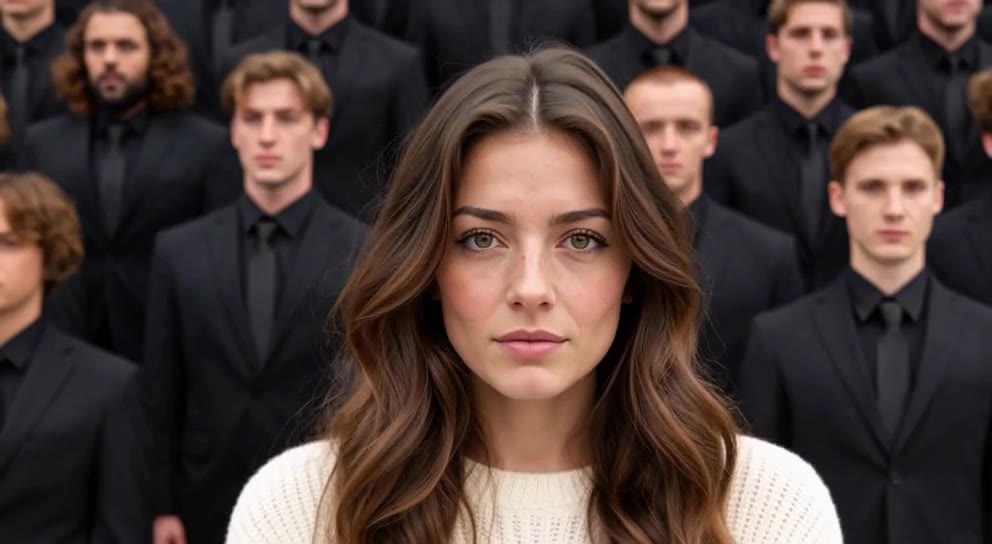
External visual reference from GoEnhance. Not a VideoAny-generated result.
3. Check the stillness and the surrounding motion
Watch the full clip first. You should be able to identify the lead immediately, even when the camera eases back and more dancers appear.
Check four things during review:
- Lead posture: the central person should hold position rather than join the dance or develop a repeated shoulder sway.
- Face size: the pullback should leave enough detail to recognize the lead at phone size.
- Crowd rhythm: the dancers should suggest coordinated motion without merging into the main person.
- Scene continuity: steps, feet and bodies should remain grounded as the original surroundings give way to the new scene.
Tiny natural motion may occur in an AI result. Judge whether the overall still-center contrast survives, rather than expecting a perfectly frozen photographic cutout.
4. Address the cause of a weak result
If the lead dances, try an upright, neutral pose with relaxed arms. If another person becomes the center, use a cleaner solo image. If the face disappears in the wide composition, choose a sharper photo with the subject larger in frame.
If the crowd is visually busy, keep the edit focused on the moment when the central person is easiest to recognize. This five-second preset creates an interpretation of the crowd-dance format rather than a complete recreation of a film sequence.
5. Download and keep the contrast visible
Use Download video once the result is ready. Add music separately, since the generated file is silent. Keep captions above or beside the main person and preview the full crop on a phone. A short setup caption can help, but the still person and moving crowd should explain the effect visually. Identify the post as AI-generated; the effect is independent of the STORM films and their performers.