Responsible use: Animate an identifiable person only with the subject's consent and the image rightsholder's authorization. Never use images of minors or age-ambiguous people, and do not create unauthorized likenesses, deceptive impersonations, or non-consensual intimate media.
Categories: AI Video, AI Image, Creator Guides
Tags: ai image animator, image to video, photo animation, motion design, creator workflow
Introduction
The best AI image animator is not necessarily the tool with the longest feature list. It is the one that turns your source image into useful motion while preserving the details that matter: the subject, composition, visual identity, and intended mood.
That distinction matters because image animation covers several different jobs. A portrait may need a restrained blink and head turn. A product image may need a controlled camera move without changing the label. An illustration may need layered parallax, environmental motion, and a more stylized transformation. Each job calls for a different balance of fidelity and invention.
This guide follows the reference article's core evaluation dimensions—generation modes, creative control, output quality, pricing structure, aspect ratios, and workflow—but turns them into a platform-neutral framework you can use before committing a full project.
What Does an AI Image Animator Do?
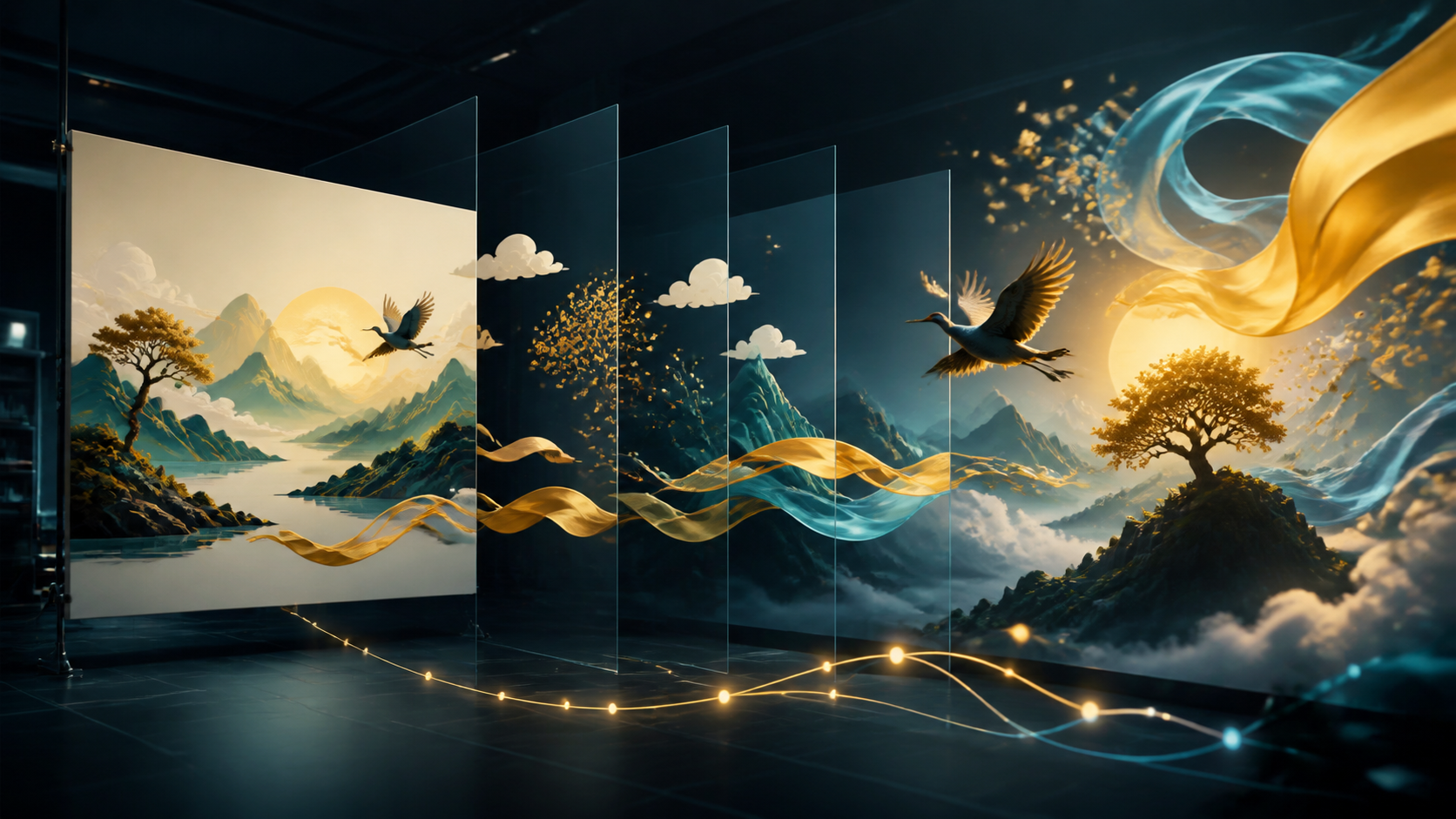
An AI image animator converts one or more still images into a sequence of frames. Instead of manually drawing every in-between frame, you describe the intended motion and let a generative model synthesize the transition over time.
The source image remains the visual anchor. A good result should feel like the same scene continuing, not a loosely related replacement. That makes temporal consistency—the ability to keep faces, objects, textures, and spatial relationships stable from frame to frame—one of the most important quality signals.
The term can also refer to a broader creation suite. Some platforms combine image-to-video with text-to-video and video-to-video workflows. These modes are related, but they solve different problems:
- Image-to-video begins with a still frame and adds motion.
- Text-to-video begins with a written scene description and invents the visual content.
- Video-to-video starts with existing motion and transforms its appearance or selected elements.
- Reference-guided planning uses images or clips to define style, framing, characters, and motion cues, whether or not the chosen platform exposes a dedicated reference mode.
Understanding the starting material helps you choose the right workflow instead of expecting one mode to solve every production problem.
What Makes the Best AI Image Animator?
1. Source-Image Fidelity
Start by asking what must remain unchanged. For portraits, that may be facial structure, hairstyle, clothing, and expression. For products, it may be silhouette, proportions, packaging, and readable label details. For artwork, it may be line quality, palette, and character design.
Run a short test and inspect the full clip, not only the first and last frames. Watch for drifting facial features, changing accessories, duplicated objects, warped hands, flickering textures, or a background that quietly rearranges itself.
2. Motion Quality and Prompt Control
Useful motion is intentional. Look for control over subject movement, camera movement, environmental effects, and intensity. A prompt such as “subtle breathing, one natural blink, hair moving lightly in a breeze, locked camera” is easier to evaluate than “make it cinematic.”
The strongest tool is the one that responds predictably when you narrow the instruction. If reducing motion strength or locking the camera produces a genuinely calmer result, you can iterate with confidence.
3. Creative Range Without False Promises
The reference article emphasizes creative freedom and contrasts broader-purpose tools with heavily filtered alternatives. Content policy does affect whether a workflow fits a project, especially for horror, satire, mature storytelling, or unconventional art. However, “unrestricted” should never be treated as permission to ignore consent, copyright, privacy, or applicable law.
Evaluate the policy separately from the model's technical quality. Confirm what material you may upload, how generations are stored, whether outputs are private by default, and which uses are prohibited. For any identifiable person, obtain permission before animating or transforming their likeness.
4. Output Resolution and Export Readiness
Resolution is only one part of usable output. A nominally large frame can still contain unstable detail, compression artifacts, or motion blur. Review the delivered file's actual dimensions, frame rate, duration, watermark policy, codec, and download options.
Also check whether the platform supports the aspect ratio you need. Landscape 16:9 works for many web and presentation contexts, vertical 9:16 fits short-form mobile video, and square 1:1 can suit feed posts. Generating in the target ratio usually avoids aggressive cropping later.
5. Iteration Speed and Cost Structure
Many AI video tools use credits or usage-based pricing. A fair comparison should consider the cost of a usable shot, not only the price of one generation. If a scene needs five attempts, the practical cost includes all five.
Before scaling up, record average generation time, success rate, credit use, and the number of acceptable seconds produced. Reserve part of the budget for revisions, alternate crops, and failed experiments. Current pricing and limits can change, so verify them on the product page at the time of production.
6. Privacy, Ownership, and Responsible Use
Uploads may contain personal photos, unreleased designs, client products, or licensed artwork. Review retention, training-use, deletion, and commercial-use terms before uploading sensitive assets.
Only animate material you own or have permission to use. Do not create deceptive impersonations, non-consensual intimate imagery, or sexualized depictions of anyone under 18. For commissioned or client work, document the rights holder, approved use, and delivery scope alongside the source files.
A Practical AI Image Animation Workflow
Step 1: Define the Finished Shot
Write one sentence describing the output: subject, action, camera, mood, duration, and destination. “A four-second vertical teaser with a slow push-in and moving fog” is more actionable than “animate this image.”
Step 2: Prepare the Source Image
Use the cleanest available image. Remove accidental borders, fix obvious compression damage, and crop close to the target aspect ratio. Make sure the main subject has enough room to move without immediately colliding with the frame edge.
Step 3: Separate Invariants from Motion
Create two short lists. The first states what must remain fixed: identity, product shape, outfit, background layout, or illustration style. The second states what should move: eyes, hair, clouds, fabric, particles, camera, or light.
This separation keeps the prompt focused and gives you a concrete review checklist.
Step 4: Generate a Low-Complexity Test
Begin with one subject action and one camera instruction. Avoid combining a dramatic camera orbit, full-body action, weather transformation, and multiple scene changes in the first attempt. A controlled test tells you how well the model preserves the source.
Step 5: Review Frame by Frame
Watch at normal speed, then scrub through slowly. Check the subject's shape, edges, hands, face, object count, text, background geometry, and lighting direction. Note the exact moment an artifact begins so the next prompt can target the cause.
Step 6: Iterate with One Change at a Time
If the camera motion works but the face drifts, keep the camera instruction and strengthen the identity constraint. If the subject is stable but the clip feels static, add one environmental motion cue. Changing a single variable makes the result easier to diagnose.
Step 7: Finish in an Editor
Treat the generated clip as source footage. Trim weak frames, stabilize if needed, adjust speed, add sound, place captions, and combine multiple short clips into a longer sequence. Final editing is where isolated generations become intentional communication.
Prompt Patterns That Produce More Controllable Motion
A useful image-animation prompt usually includes four elements:
- Subject action: “The adult character turns slightly toward the window.”
- Environmental motion: “Curtains and loose hair move gently in the breeze.”
- Camera behavior: “Slow dolly in; no cuts; keep the horizon level.”
- Preservation constraints: “Preserve facial features, clothing, composition, and color palette.”
Use observable language. “Premium,” “beautiful,” and “epic” describe taste but not motion. Words such as “subtle,” “slow,” “locked,” “continuous,” and “single movement” give the model a clearer temporal target.
For portraits, start conservatively. For landscapes and abstract art, you can often push parallax, particles, light, and camera movement further because there is less identity-sensitive detail to preserve.
Comparing AI Image Animators with a Test Matrix
Use the same source image and prompt across candidates, then score each result on a simple 1–5 scale.
| Dimension | What to inspect |
|---|---|
| Source fidelity | Does the subject remain recognizably the same? |
| Temporal consistency | Do details remain stable across frames? |
| Motion control | Does the clip follow the requested action and camera move? |
| Artifact rate | How often do warping, duplication, or flicker appear? |
| Format fit | Are the required duration, ratio, resolution, and download options available? |
| Practical cost | How many attempts and credits produce one usable shot? |
| Rights and privacy | Are upload, retention, consent, and commercial terms appropriate? |
This test is more reliable than choosing from a marketing claim alone. The “best” animator is the one that performs well on the dimensions your project actually needs.
Building the Workflow with VideoAny
If your starting point is a finished still, use VideoAny Image-to-Video for the animation pass. When no source image exists, prototype the scene with Text-to-Video. If you already have footage and want a visual transformation, evaluate the Video-to-Video workflow instead.
Keep a small production log for every accepted clip: source filename, prompt, generation settings, aspect ratio, intended use, rights status, and edit notes. That record makes later variations more consistent and helps teams distinguish approved assets from experiments.
Frequently Asked Questions
Can an AI image animator preserve a face perfectly?
No tool should be assumed to preserve identity perfectly in every frame. Use a short test, inspect closely, and avoid publishing identity-sensitive material without the subject's permission and a careful review.
What is the best aspect ratio for image animation?
Use the ratio of the final platform whenever possible: 16:9 for common landscape video, 9:16 for vertical short-form content, or 1:1 for square feeds. Leave enough space around the subject for motion and cropping.
How long should the first test clip be?
Start short. A brief clip makes continuity problems easier to spot and reduces the cost of a failed concept. Once the motion is stable, build a longer edit from several controlled shots.
Is image-to-video the same as text-to-video?
No. Image-to-video uses a still image as the visual anchor, while text-to-video invents the scene from a written description. Choose based on whether preserving an existing visual is central to the project.
Can I animate any image I find online?
Not automatically. Copyright, publicity rights, privacy, and platform rules still apply. Use your own work, licensed material, public-domain assets, or content you have explicit permission to transform.
Conclusion
Choosing the best AI image animator is a production decision, not a popularity contest. Test fidelity, motion control, temporal stability, format support, real iteration cost, and rights protections with the same source material. Then build a repeatable workflow that begins with a clear shot goal and ends with human review and editing.
The result is more than a moving picture: it is a controlled asset you can confidently place inside a larger video project.