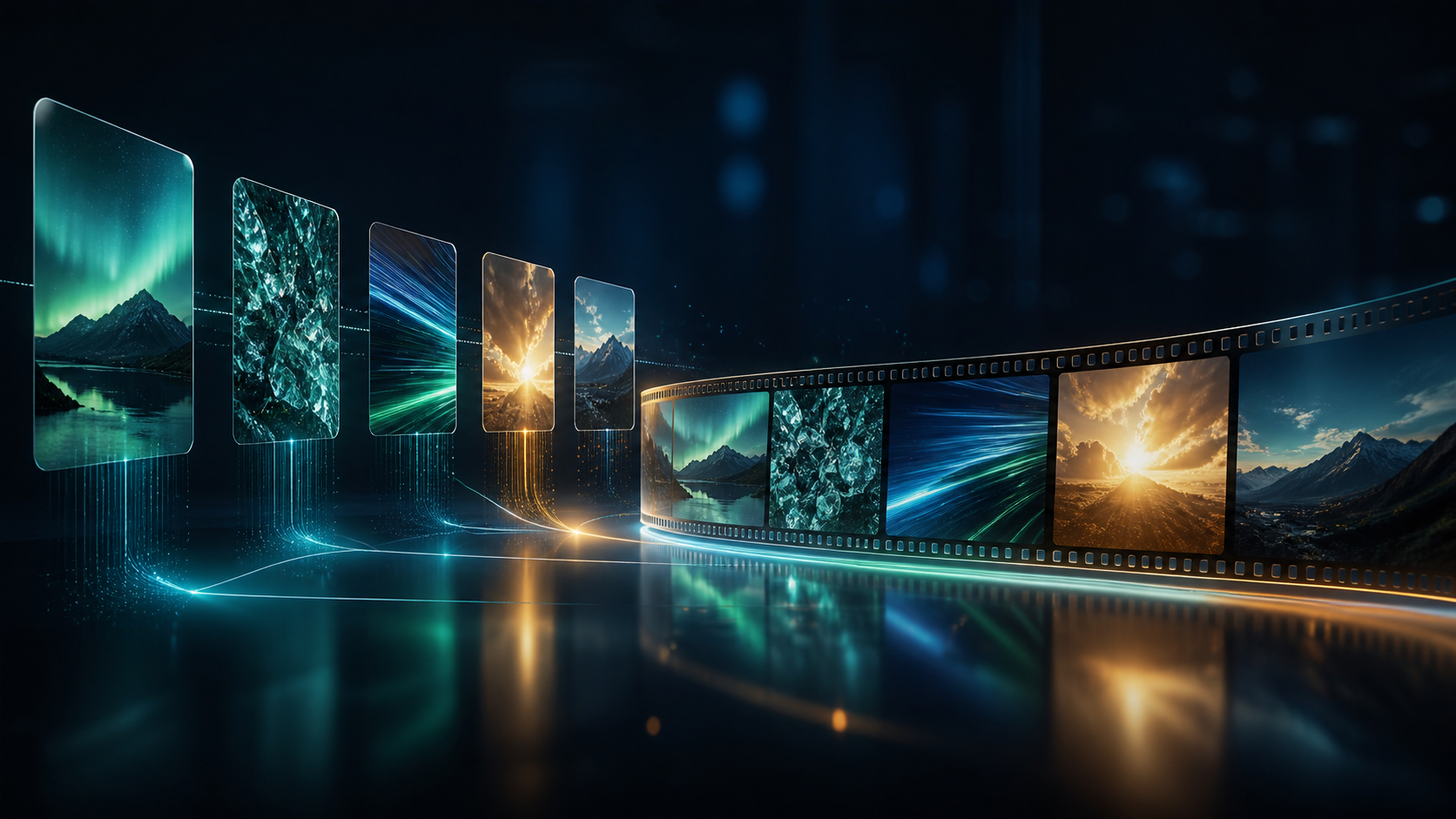
Building your own AI video clips is different from asking a model to create an entire finished film. Short generations are easier to direct, compare, replace, and edit. The real production skill is designing clips that belong together: consistent subjects, compatible camera language, a shared visual palette, and enough motion overlap for clean transitions.
Creators sometimes use “unrestricted” to describe the control they want over this process. In practice, useful control means choosing the right input for each shot, recording invariants, selecting model-specific settings, and reviewing every result. Platform terms, consent, identity rights, and applicable law still apply.
Responsible use: Mature-content workflows must be limited to lawful material involving consenting adults. Never create sexualized content involving minors, non-consensual imagery, exploitative material, deceptive impersonation, or an unauthorized likeness.
Why a Clip-Based Workflow Works
AI video models often excel at one concise visual event: a subject turns, a camera pushes through a doorway, fabric catches the wind, or light changes across a set. A long prompt that demands several locations, characters, and story beats can force the model to solve too many continuity problems at once.
A clip-based plan offers four advantages:
- Replaceability: A weak shot can be regenerated without discarding the whole sequence.
- Prompt clarity: Each generation has one action and one camera goal.
- Budget control: Test shots stay short until the visual direction works.
- Editorial control: Timing, sound, captions, and transitions remain adjustable in the edit.
Think of each generated clip as raw footage, not as the finished communication.
Plan a Five-Shot Micro-Sequence
Use a simple progression for a 15-to-30-second piece:
| Shot | Narrative job | Prompt focus | Continuity to preserve |
|---|---|---|---|
| 1 | Establish the world | location, time, atmosphere, wide camera | palette, weather, architecture |
| 2 | Introduce the subject | adult character, wardrobe, entrance action | face or synthetic design, costume |
| 3 | Show a detail | object, gesture, texture, close-up | light direction, materials |
| 4 | Deliver the motion beat | main action, camera movement, pacing | subject proportions, environment |
| 5 | Resolve or invite the next step | final pose, exit, reveal, negative space | palette, camera grammar, tone |
Write the shot list before selecting a model. If the five rows cannot be explained in one sentence each, the concept may need to be simplified.
Choose an Input Mode Per Shot
Text-to-Video for Establishing and Concept Shots
Text-to-video works well when the scene does not yet have a fixed visual source. It can establish environments, actions, and camera ideas from a written brief. Explore current controls in VideoAny Text-to-Video.
Image-to-Video for a Locked Composition
An approved image can anchor a subject, product, illustration, or first frame. Use the prompt to describe motion and camera behavior while listing what must stay unchanged. Start from VideoAny Image-to-Video when visual composition matters more than free exploration.
Reference Guidance for Supported Models
Some models accept a reference image for selected visual traits. Use original or licensed material, identify the intended role of the reference, and confirm model support before planning the sequence around it.
Video-to-Video for Existing Performance
When an authorized source clip already contains timing or camera motion, video-to-video can preserve part of that structure while changing the visual treatment. State invariants such as “keep movement and camera path; change only surface style and environment.” VideoAny Video-to-Video provides this transformation path.
Face Replacement Only When Identity Is Necessary
Face swap is not a general continuity tool. It changes identity signals and requires explicit permission for the scene and distribution. If a synthetic adult character can serve the story, avoid adding a real person's face.
Create a Continuity Bible
Before generating shot 1, record the details that should persist.
Subject Card
- adult status and synthetic or authorized identity;
- face shape, hair, build, and key proportions;
- complete wardrobe description;
- accessories and materials;
- movement style and emotional tone.
Environment Card
- location and layout;
- time of day and weather;
- key colors and materials;
- light direction and contrast;
- background elements that must recur.
Camera Card
- aspect ratio;
- preferred lens feel or framing;
- allowed movements;
- horizon and eye-line conventions;
- whether the sequence feels polished, handheld, dreamy, or observational.
Copy only the relevant continuity lines into each prompt. A giant repeated paragraph can obscure the action unique to the shot.
Original Prompt Examples
The following examples cover cinematic, fantasy, vertical, and square ideas while keeping the requests non-explicit.
Widescreen Cyberpunk Establishing Shot
An adult cyberpunk warrior in a fully covered indigo coat waits beneath a rain-soaked transit arch, luminous body paint visible only on the face and hands, wet pavement reflecting signs without readable text, slow dolly from wide to medium, restrained tension, 16:9 composition.
Continuity notes: indigo coat, amber rim light, rain direction, slow camera.
Vertical Fantasy Character Beat
Two adult winged performers in elaborate gothic stage costumes exchange a mischievous glance backstage, fully clothed, red practical lights and drifting theatrical haze, one performer opens a curtain as the camera follows, playful non-sexual tone, 9:16 composition.
Continuity notes: costume silhouettes, red-and-charcoal palette, haze density.
Square Mythic Action Clip
An armored centaur charges past a stone hydra statue in a lush ceremonial garden, leaves and dust moving with the impact, low locked camera with brief slow motion, bold mythic illustration style, 1:1 composition.
Continuity notes: armor pattern, garden palette, low camera height.
Widescreen Closing Portrait
An adult alien monarch in a fully covered iridescent ceremonial robe settles onto a throne formed from bioluminescent plants, quiet breath and subtle fabric motion, gentle orbiting camera that ends with negative space on one side, mysterious but non-sexual tone, 16:9 composition.
Continuity notes: iridescent robe, cyan plant light, slow orbit.
Generate and Review One Shot at a Time
Use this five-stage loop:
- Choose the model and input. Confirm accepted media, aspect ratio, duration, resolution, and credit estimate.
- Write one action. A shot may include camera motion, but it should have one primary subject action.
- Generate a short test. Do not increase quality or duration until composition and motion work.
- Review against the continuity bible. Check subject design, wardrobe, light direction, camera, background, age presentation, and rights.
- Save the approved take and move forward. Keep rejected generations out of the final timeline.
If shot 3 fails, do not change the established palette or character description unless those details caused the failure. Adjust the unique action first.
Assemble the Clips in an Editor
Generation outputs need editorial finishing:
- Trim the uncertain frames. The first or last frames may contain settling artifacts.
- Preserve motion direction. A subject moving left-to-right should not reverse without a narrative reason.
- Match color and exposure. Small grade adjustments can make separate models or generations feel related.
- Use transition handles. Leave stable frames or gentle motion at the ends so cuts and dissolves have room.
- Build sound across the cut. Room tone, music, or an audio bridge can unify clips more effectively than a visual effect.
- Add captions after the crop is locked. Keep text inside safe areas for the final platform.
- Review the whole sequence. A clip that looks strong alone may interrupt pacing or continuity.
Aspect Ratio, Resolution, and Credits
Choose one master aspect ratio for the sequence. Common options include 16:9 for widescreen, 9:16 for vertical mobile video, and 1:1 for square placements, but availability depends on the selected model.
There is no universal 1080p rule across VideoAny. Select models reach up to 4K, while others offer lower maximums. Generate at a setting appropriate for tests, then use a supported delivery resolution after the sequence works.
VideoAny uses credits, but cost logic varies. Many models calculate credits from duration and quality, while others use a fixed per-generation amount. Record the estimate for every shot so a difficult clip does not quietly consume the budget intended for the entire sequence.
Where Short AI Clip Sequences Fit
- Social video: Build hooks, visual reveals, and short vertical narratives.
- Adult-creator previews: Produce lawful, non-explicit, age-gated teaser sequences from authorized material.
- Niche marketing: Assemble product atmosphere and campaign beats for an appropriate audience.
- Satire and memes: Create clearly fictional sequences without deceptive impersonation or targeted harassment.
- Digital art: Combine abstract motion studies into a coherent audiovisual piece.
- Story and game prototyping: Test environments, character entrances, action beats, and cutscene rhythm.
For political or identity-sensitive satire, avoid realistic misrepresentation. A stylized synthetic subject and clear context are safer than a convincing false depiction of a real person.
Frequently Asked Questions
How long should each generated clip be?
Use the shortest duration that contains the intended action plus a little transition room. Short tests are easier to direct and cheaper to replace.
Should every shot use the same model?
Not necessarily, but changing models can alter texture, motion, color, and subject consistency. Test compatibility before mixing them in one sequence.
Can I use a real face for continuity?
Only with explicit permission for the transformation and distribution. A synthetic adult character is often a safer continuity anchor.
Which aspect ratio should I choose?
Choose the destination before generating. Keep one master ratio across all shots unless the edit intentionally presents mixed media.
Is every clip exported at 1080p?
No. Resolution depends on the model. Some options reach up to 4K while others provide lower maximums.
How do I keep clips from feeling disconnected?
Reuse the subject, environment, and camera cards; preserve motion direction; match color and exposure; and design sound across cuts.
Build the Sequence from Evidence
Generate the establishing shot first, approve its palette and camera language, then use those decisions to guide the remaining clips. A coherent short video grows from reviewed pieces—not from asking one prompt to solve the entire edit.