Creators may search for an “AI photo to short unrestricted video clip” workflow, but the practical task is more precise: upload an authorized still, describe movement, and generate within the selected model's and platform's rules. The difficult part is deciding what can happen clearly in only a few seconds.
A useful short clip is not a compressed movie. It is one visual beat with a beginning, a change, and an intentional ending. A character glances up as neon light passes. A creature opens its wings and settles. Two fictional adult dancers move into an embrace as the camera drifts closer. When the action arc is small enough, image-to-video can add life without asking the model to redesign the entire frame.
This guide preserves the practical five-step workflow—upload, describe, select ratio and duration, generate, then review and download—while making “unrestricted” responsible. Creative flexibility never overrides consent, ownership, VideoAny's terms, a destination's rules, or applicable law.
Responsible-use baseline: Upload only material you own or are authorized to transform. Mature content must involve consenting adults. Never create or share material involving minors, non-consensual imagery, exploitation, deceptive impersonation, or an unauthorized likeness.
Why Short Clips Need a Motion Arc
For a three-to-five-second idea, the viewer must understand the change almost immediately. Plan three beats:
- Establish: the still image is recognizable for a brief moment.
- Change: one subject, environmental, or camera movement becomes visible.
- Resolve: the movement settles into a useful end pose or returns toward the opening for a loop.
The exact duration options in VideoAny depend on the selected model. You can still plan a three-to-five-second creative beat and map it to the closest available duration. If the model produces a longer clip, trim the strongest portion during editing.
An arc prevents two common failures. Without an establish beat, the video may feel like it begins in the middle of an error. Without a resolve beat, the last frame can look accidental and make looping or cutting difficult.
Choose a Photo With Motion Potential
The best starting still does not need to look dramatic. It needs to make the intended motion possible.
Look for Visual Breathing Room
Leave space in front of a moving subject. If a character should turn right, avoid placing the face against the right edge. If a camera should push in, make sure the source contains enough surrounding detail to support the crop.
Find One Implied Action
Useful cues include a raised wing, fabric caught in wind, a hand near an object, a reflective surface, smoke, water, hair, curtains, or directional lighting. Select one cue as the main event. A photo that implies ten simultaneous actions is harder to animate coherently.
Simplify Fragile Detail
Tiny lettering, intricate jewelry, repeated stripes, crowded fingers, or complicated background faces can change from frame to frame. Remove unnecessary detail when you have the right to edit the source, or choose a cleaner frame.
Verify Provenance
An AI-generated photo can still contain licensed elements or an unintended resemblance. Keep the prompt and generation record for an original image. If the still depicts a recognizable adult, obtain explicit permission for animation and the planned context. Do not use a celebrity, private person, former partner, or public profile image without authorization.
The Five-Step Photo-to-Clip Workflow
Step 1: Upload the Image
Open Image to Video, choose a model, and upload the rights-cleared still. Preview its orientation and crop. If a vertical deliverable is the goal, a purpose-built vertical frame is usually more reliable than forcing a wide image into a narrow canvas.
Image to video is the core method here. Text to Video is better when no starting image is needed, while Video to Video can help when you already own footage with the desired timing. Reference-led and authorized face workflows provide other forms of control, but they are not required to animate one original photo.
Step 2: Describe the Movement
Write the prompt as a change from the existing image. Use this compact order:
subject action → environmental response → camera behavior → pace → stability cue
Example:
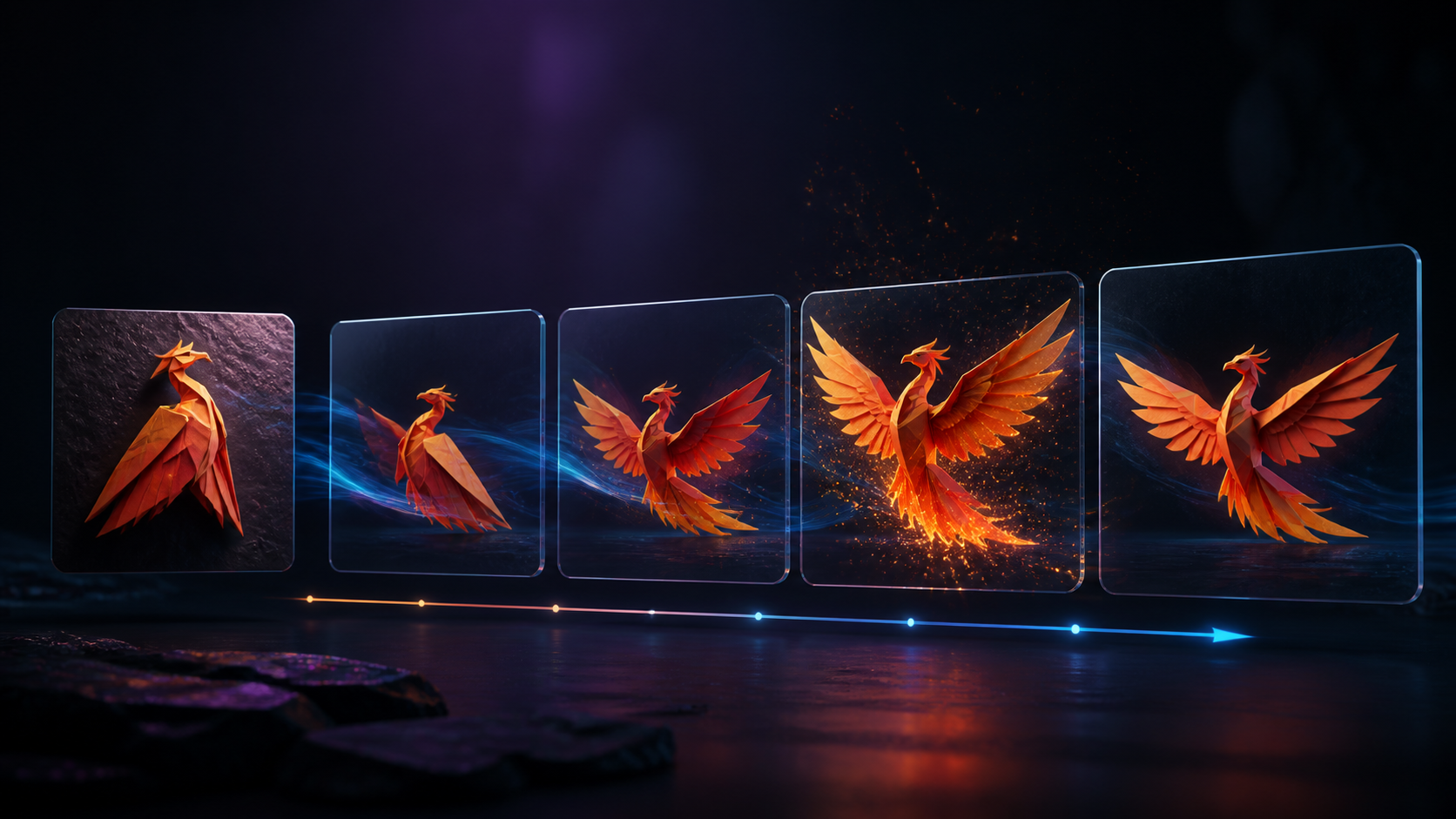
The origami phoenix slowly opens its wings; a few warm sparks rise; gentle camera push-in; measured motion; maintain the folded-paper design and dark background.
The image already defines color, appearance, and composition. Repeating every visible detail can dilute the motion instruction. One verb for the subject and one camera cue are usually enough for the first attempt.
Step 3: Choose Aspect Ratio and Duration
Common output ratios include:
- 9:16 for a full-screen vertical feed;
- 16:9 for a landscape player or cinematic shot;
- 1:1 for a centered square post or loop.
Availability varies by model. Select a ratio that matches the source composition and intended destination, then choose a short supported duration. Do not assume all models offer the same length, ratio, or resolution.
Step 4: Generate a Controlled Variant
Generate one test before expanding the prompt. If the result misses the intended action, revise only the most important variable. For example, change “turns quickly” to “slow head turn” without also changing lighting, camera, and background.
Make a small group of purposeful variants:
- one with reduced subject motion;
- one with a locked camera;
- one with a gentler environmental effect.
This reveals which type of motion is destabilizing the frame.
Step 5: Review, Trim, and Download
Watch the beginning and end several times. Check whether the still is recognizable at the start, the action reads in the middle, and the final pose can support a cut or loop. Then inspect faces, hands, edges, patterns, and background geometry frame by frame.
Download the best lawful version and trim it to the strongest action arc. Add sound, captions, or transitions in editing only after the visual beat works on its own.
Three Short-Clip Prompt Examples
These examples mirror the practical landscape, portrait, and square structure while keeping the characters fictional and the actions compact.
Vertical 9:16: Neon Character Beat
A fictional neon courier looks up toward a passing light; jacket hem shifts in a soft breeze; subtle handheld rise; confident, restrained motion; preserve the original facial design and vertical composition.
Arc: still gaze → light passes and eyes lift → coat settles.
This is suitable for a vertical character reveal. If the source resembles a real adult, obtain consent before animation.
Square 1:1: Dark Fantasy Loop
A stone guardian in a torchlit chamber slowly tightens one chain; tiny dust particles fall; locked camera; dramatic but minimal movement; keep the carved face and symmetrical framing stable.
Arc: resting pose → chain movement → return toward rest.
The centered composition and limited action work well for a square loop or profile visual.
Landscape 16:9: Cinematic Embrace
Two fictional adult dancers in silhouette move into a gentle embrace on a wide beach at sunset; fabric and ocean surface move softly; slow lateral camera drift; warm cinematic pace; stable silhouettes.
Arc: separated poses → one shared movement → settled composition.
For photographs of real people, both recognizable adults must approve the animation and distribution context.
Spend the Motion Budget Carefully
A short clip has a limited “motion budget.” Every major action competes for the model's attention and for the viewer's ability to read the result.
Subject Motion
Use one main action: glance, smile, step, wing opening, object rotation, or fabric lift. Large body movement from a tightly cropped portrait often requires the model to invent anatomy outside the source frame.
Environmental Motion
Choose a small supporting effect such as rain, sparks, leaves, smoke, reflections, or moving light. The environment should reinforce the main action, not conceal it.
Camera Motion
A locked camera maximizes stability. A slow push-in adds focus. A small lateral drift can reveal depth. Avoid combining rapid zoom, orbit, shake, and subject movement in one brief shot.
Ending Behavior
Decide whether the clip should settle, cut on motion, or loop. A settle ending is easiest for a single post. A cut on motion can connect to another shot. A loop benefits from small reversible movement, but a prompt cannot guarantee a seamless join; inspect and edit the endpoints.
What “Unrestricted” Should Mean
Creative flexibility is useful when it allows unusual genres, mature themes, satire, or experimental imagery within a lawful and authorized project. It does not mean “any image” is eligible, that every prompt will run, or that generated media may be posted anywhere.
Before uploading or sharing:
- confirm every recognizable person is an adult and has given informed permission;
- document rights to transform the still;
- avoid real-person impersonation and misleading presentation;
- review the destination's current mature-content and synthetic-media policies;
- add disclosure or age-gating where required;
- do not create content involving minors or non-consensual scenarios.
The same boundaries apply to memes. Humor is not consent, and parody does not automatically grant a right to transform a person's likeness in every jurisdiction or context.
Short Clips for Different Creative Goals
- Digital artists can animate one feature of an original character illustration and preserve the artwork as the visual anchor.
- Social creators can build a vertical reaction, reveal, or atmosphere beat with space for interface overlays.
- Meme creators can add a single visual punch line to original or lawfully reusable imagery.
- Marketers can create restrained motion from a licensed product frame, then inspect logos and geometry.
- Adult creators can animate authorized material involving consenting adults within platform and legal boundaries.
- Storytellers can turn a keyframe into a brief mood or character beat before constructing a longer scene.
For a multi-shot story, generate each action arc separately. A five-second clip is a building block, not a substitute for editing.
Credits, Resolution, and Export Planning
VideoAny uses credits, but calculation varies by model and settings. Many video models charge according to duration and quality; some configurations use a fixed per-generation amount. Review the live controls before submitting rather than assuming a universal per-second rate.
Resolution is also model-dependent. Some workflows offer 1080p or higher, while others have lower limits. A short clip still needs temporal stability; increasing resolution cannot fix a broken action arc. Test motion at a practical setting, then choose the delivery quality the destination needs.
Short-Clip Quality Checklist
Before export, confirm:
- the start reads as an intentional first beat;
- one main action is visible;
- environmental and camera motion support that action;
- the end settles, cuts cleanly, or can be edited into a loop;
- the subject does not change identity or apparent age;
- hands, face, edges, and background remain coherent;
- the crop fits the intended aspect ratio;
- no unlicensed marks, unintended likenesses, or unsafe details appear;
- the destination allows the content and required disclosure is ready.
If the middle works but the ending fails, trim the clip. If the identity or anatomy fails, regenerate from a clearer photo and simpler instruction.
Frequently Asked Questions
Is three to five seconds always available?
No. That is a useful creative target for one action arc, but model duration options vary. Choose the closest supported duration and trim in editing if needed.
Should I describe the whole image in the prompt?
Usually not. The still already provides visual information. Describe the change: action, environment, camera, pace, and what should remain stable.
Can I make a seamless loop automatically?
You can design reversible motion and ask for a loop-like ending, but inspect the first and last frames. Editing may still be needed for a clean seam.
Which aspect ratio should I use?
Match the destination and the source composition. Common choices are 9:16, 16:9, and 1:1 on models that support them.
Can I animate a real person's photo?
Only with appropriate image rights and that adult's explicit permission for AI animation and the intended context. Do not use minors or an unauthorized likeness.
Make One Change Read Clearly
The most effective way to turn an AI photo into a short video clip is to keep the visual promise small. Choose a rights-cleared image with room for movement, plan an establish-change-resolve arc, describe one action, and select the ratio and duration available on the chosen model.
Generate a few controlled variants, review every frame, and trim around the strongest moment. When one change reads clearly, a few seconds can feel complete rather than unfinished.