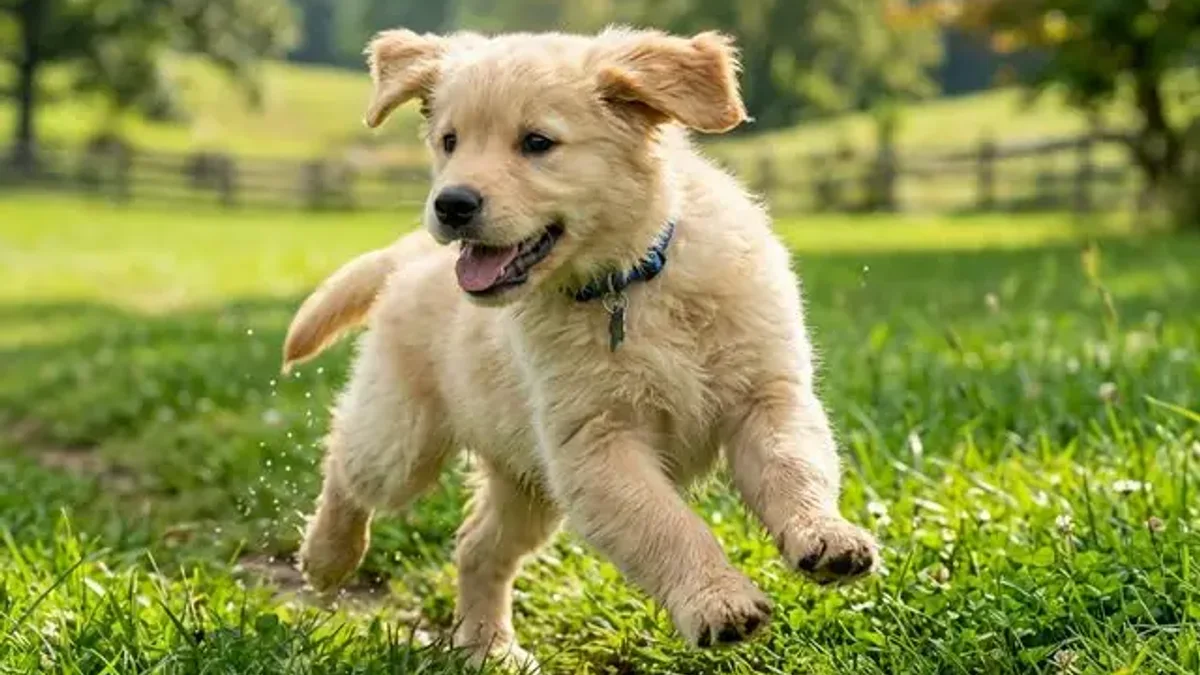
Why pet photos are worth animating
A single photograph captures a fleeting moment, but video preserves the essence of your pet—the subtle head tilt, the slow blink, or the gentle start of a tail wag. In 2026, AI video generation has reached a level of maturity where a still image can be transformed into a natural-looking clip in roughly two minutes. By interpreting fur texture, lighting, and anatomy, the model creates motion that feels authentic, providing a meaningful way to revisit memories of pets who are no longer with us.

What AI does well with pet photos — and what it doesn't
Before you begin, it is important to understand the current limitations of the technology. AI excels at adding natural, subtle movements to static images. However, the "melting" effect—where the subject appears to distort—usually happens when the AI is pushed to perform extreme actions. The golden rule is simple: request gentle, slow-motion movements. If you ask for a high-speed sprint, you are more likely to encounter artifacts.

Copy-paste prompts for each pet type
You can use these structured prompts across various models. Simply replace the bracketed description with the specific details of your pet.
- For Dogs: "Slow head turn to the left, soft tail wag, gentle breathing visible in the chest, fur rippling lightly. No camera movement. 6 seconds."
- For Cats: "Slow blink, subtle ear rotation, whisker twitch, tail tip curling gently. Locked-off camera. 5 seconds."

Step by step: from photo to moving clip
To achieve the best results, start by selecting a high-quality photo where the face is clear and the fur is well-lit. Avoid images where the pet is mid-bark, has ears fully flattened, or is framed too tightly (if the nose fills the entire frame, the AI lacks the spatial context to animate effectively).
- Open the VideoAny Image to Video workspace.
- Upload your chosen photo.
- Input your motion prompt.
- Select the Kling 3 model for the final render.

Tips for fur and face that don't melt
Preserving fur texture is the most challenging aspect of AI video. Success depends more on your input choices than the model itself. By keeping the motion subtle and ensuring your source image is crisp, you allow the AI to maintain the integrity of the fur and facial features. If you prefer a guided experience, the "Make Pets Talk" feature on VideoAny provides preset motion styles specifically optimized for fur and face preservation.

Making a video from multiple pet photos
While the VideoAny workspace processes one image per generation, you can easily create a longer sequence by generating multiple clips and stitching them together in your preferred video editor. This allows you to build a narrative arc for your pet’s "story."
Frequently asked questions
What is the best AI model for animating pets? Kling 3 is currently the top choice for breed-feature retention—it keeps a Golden Retriever’s coat color accurate and a Husky’s eye color consistent. For rapid testing, you can use Kling 2.5 Turbo and then re-render your favorite results with Kling 3.
Is there a cost to try this? New accounts on VideoAny start with free credits, allowing you to test the technology without a credit card. Check the official pricing page for details on higher-volume plans.
Can I turn these into social media clips? Yes. You can transform a single still photo into a vertical 9:16 format suitable for TikTok or Reels directly within the VideoAny workspace.
See also
- Best Deep Nostalgia Alternatives in 2026: A guide to tools for animating old photos, ranked by quality and privacy.
- AI Hug Video Guide: A step-by-step walkthrough on creating viral-style hug videos using the VideoAny workspace.
Try it on your best photo
Ready to bring your pet's photo to life? Head over to VideoAny to access the Image to Video workspace and start your first generation today.